System generates garbage characters or question marks ??? when exporting a CSV file with Chinese character, Japanese Character..
It is okay to view the Chinese / Japanese character in notepad, but cannot be shown correctly in Excel.
It is because Excel does not handle the unicode well.
Solution
It can be solved by adding addition header (BOM, Byte order Mask) to the downloaded CSV file.
response.setContentType("application/vnd.ms-excel:UTF-8");
response.setHeader("Content-Disposition", "attachment; filename=myOutputFile.csv");
// Excel does not recongize the UTF-8, add additional header (BOM) for excel
OutputStream outputStream = response.getOutputStream();
outputStream.write(0xEF);
outputStream.write(0xBB);
outputStream.write(0xBF);
BufferedWriter writer = new BufferedWriter(new OutputStreamWriter(outputStream, "UTF-8"));
// Your method that generate the CSV content
writeSth(writer);
writer.flush();
writer.close();
Thursday, April 12, 2012
Monday, March 26, 2012
request.getparameter returns corrupted characters
When inputs non-unicode characters (such as Japanese, Traditional Chinese), system may returns corrupted characters during request.getParameter("XXX")
It is because the tomcat uses ISO-8859-1 as the default encoding...
Solutions:
1. By declaring page directive
OR
2. Set the encoding before calling request.getParameter("XXX") in the page
It is because the tomcat uses ISO-8859-1 as the default encoding...
Solutions:
1. By declaring page directive
<%@ page contentType="text/html;charset=UTF-8"%>
OR
2. Set the encoding before calling request.getParameter("XXX") in the page
<%
request.setCharacterEncoding("UTF-8");
request.getParameter("XXX");
request.getParameter("YYY");
%>
Tuesday, March 13, 2012
Code Snippnet: Converting java.util.Date to java.sql.Date
java.util.Date today = new java.util.Date();
long t = today.getTime();
java.sql.Date dt = new java.sql.Date(t);
Wednesday, February 22, 2012
Small Technique on using Java Decompiler in Eclipse
Here's my common use way on the Java Decompiler..
Method 1: Direct Access to the class by shortcut
1. Click Ctrl + T, and then input the class and input the class name
2. Eclipse will bring you to the class implementation.

Method 2: Direct Access to the class by Open Declaration (F3)
1. Mouse over to the corresponding class in the Java File and click F3
For example, mouse over javax.ejb.SessionBean and then click F3
2. Eclipse will bring you to the class implementation.
Method 3: Use Java Browsing Perspective
1. Click the icon in the Red Box below to Open a new perspective
2. Choose Java Browsing
3. You may find your class implementation as below.
Method 1: Direct Access to the class by shortcut
1. Click Ctrl + T, and then input the class and input the class name
2. Eclipse will bring you to the class implementation.

Method 2: Direct Access to the class by Open Declaration (F3)
1. Mouse over to the corresponding class in the Java File and click F3
For example, mouse over javax.ejb.SessionBean and then click F3
2. Eclipse will bring you to the class implementation.
Method 3: Use Java Browsing Perspective
1. Click the icon in the Red Box below to Open a new perspective
3. You may find your class implementation as below.
Monday, February 20, 2012
Install Decompiler in Eclipse Indgio
This article will show you how to install a Java Decompiler to Eclipse.. We will use JadClipse in this example.
1. Download JAD
http://www.softpedia.com/progDownload/JAD-Download-85911.html
2. Download JADEclipse in sourceforge
http://sourceforge.net/projects/jadclipse/
3. Put the JAR to Eclipse Plugin Folder
4. Start and Configure Eclipse for the JAD Plugin
In Eclipse, Click Window –> Preference –> Java –> Jadclipse
5. Done and test
Open a file, mouse over the javax.ejb.SessionBean, click F3 to go to the class definition.
The Decompiled Java file will be shown.
| JadClipse | |
|---|---|
| Maintainer: | Vladimir Grishchenko, Johann Gyger |
| Platform: | Platform independent |
| Genre: | Java, Decompiler, Eclipse plug-in |
| License: | CPL |
| Languages: | English, Russian |
| Website: | JadClipse.sf.net |
1. Download JAD
http://www.softpedia.com/progDownload/JAD-Download-85911.html
2. Download JADEclipse in sourceforge
http://sourceforge.net/projects/jadclipse/
3. Put the JAR to Eclipse Plugin Folder
For example: D:\eclipse_indigo\plugins\net.sf.jadclipse_3.3.0.jar
4. Start and Configure Eclipse for the JAD Plugin
In Eclipse, Click Window –> Preference –> Java –> Jadclipse
For example:
Path to decompiler: D:\warez\JAD\jadnt158\jad.exe
Directory for temporary files: D:\tmp\Decompiler
5. Done and test
Open a file, mouse over the javax.ejb.SessionBean, click F3 to go to the class definition.
The Decompiled Java file will be shown.
Thursday, February 16, 2012
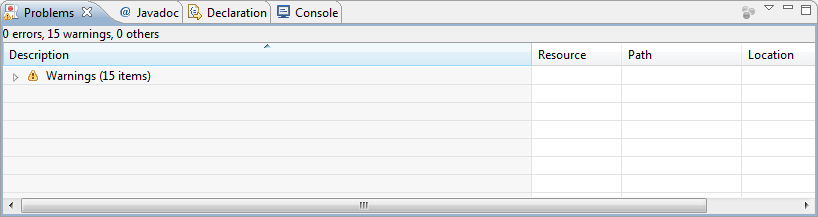
The project was not built due to "Could not delete 'XXXXXX'". Fix the problem, then try refreshing this project and building it since it may be inconsistent.
The project was not built due to
"Could not delete 'XXXXXX'". Fix the problem, then try refreshing this project and building it since it may be inconsistent.
This problem is due to the cache of the old class file in eclipse, to clean the cache..
1. Project -> Clean
2. Clean all projects
3. The error is gone.
This problem is due to the cache of the old class file in eclipse, to clean the cache..
1. Project -> Clean
2. Clean all projects
3. The error is gone.
How to avoid calling huge number of Java program
Background
When the mail server receive email, it would trigger a java program by calling a shell script.
However, as the volumne of email is large, the java program will be triggered serveral times...
Better Design
When the mail server receive email, it would trigger a java program by calling a shell script.
However, as the volumne of email is large, the java program will be triggered serveral times...
Better Design
Subscribe to:
Posts (Atom)